
Here is my Tutorial to install XP Professional on Netbook without a CD/DVD Drive with U3 USB Key :
Note : This post can even be useful for Pc's lacking a CD/DVD drive.
1. Download U3 launchpad and update your u3 flash drive. If your flash drive already emulates a cd drive (if u can see a cd drive icon next to your removable media) then skip this step and move on to step 2
2. Download Universal Customizer for U3. Search "Universal Customizer" on google to get download links. Or else you can download it from http://www.hak5.org/w/index.php/Universal_U3_LaunchPad_Hacker
3. Extract universal customizer and navigate to BIN Folder and delete the image file U3custom.iso.
4. Since Windows XP does not include SATA drivers, we will have to integrate the drivers in XP cd with nlite.
5. Now, download the latest version of Nlite from www.nliteos.com
6. Next, we will copy the contents of XP Cd Rom to C:\XPCD . If you have an XP ISO, then extract it using winrar or similar software.
7. Now, install Nlite. After Installation, Run NLite, Intergrate SATA Drivers (download sata drivers from here http://rapidshare.com/files/423629781/IMSM.rar ). These drivers came with my Lenovo Ideapad S10-2 and they will work for most of the Netbooks.
Now make a bootable XP cd with nLite. If you are new to the nLite software then follow the screenshots below or skip to next step.
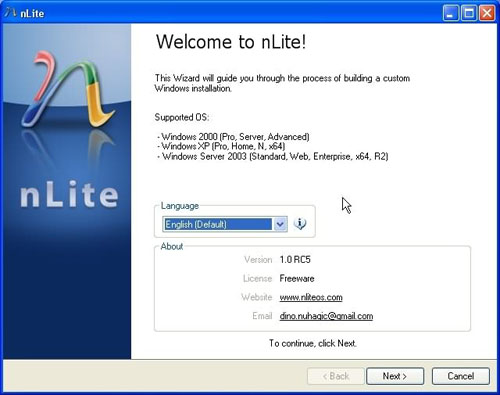
This is the Welcome screen of nLite . Clck Next to continue.
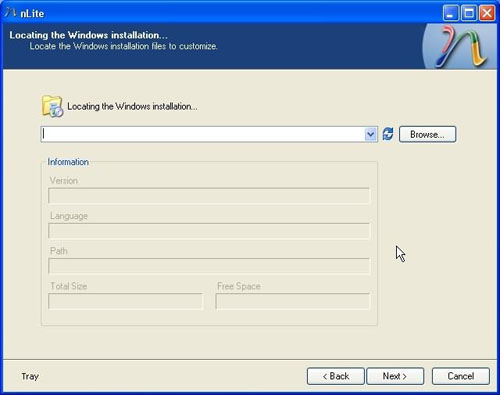
Now, browse to the folder where you have saved the XP CD Files.
Example : C:\XPCD and then click next to continue
Example : C:\XPCD and then click next to continue
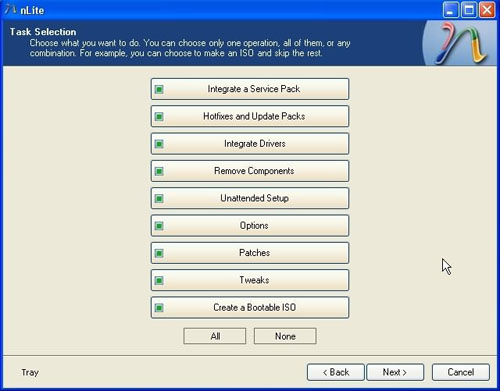
In the Task Selection window click on Integrate Drivers & Create a bootable cd
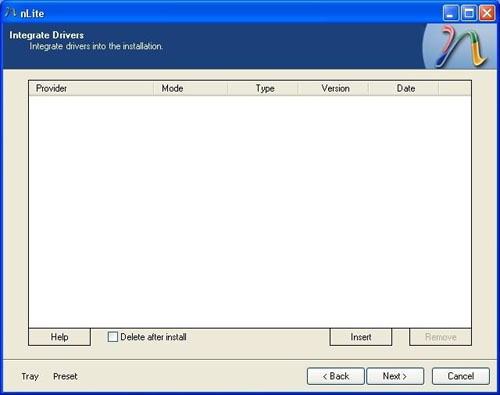
Click on Insert Tab and navigate to the folder IMSM,
which we have downloaded before in Step 7.
Select the .inf files from the IMSM folder and add them. Click next.
which we have downloaded before in Step 7.
Select the .inf files from the IMSM folder and add them. Click next.
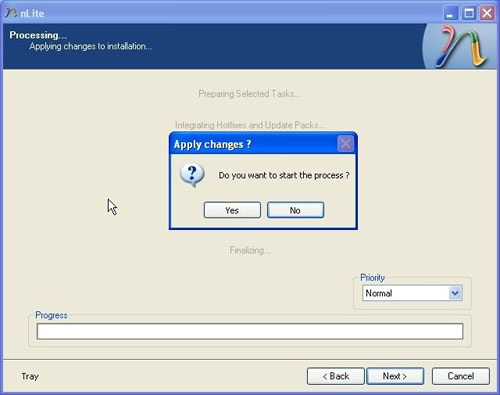
Click yes. Then, in the next window click on Make ISO and save the ISO on your hard drive. Now you have completed the integration of drivers in XP ISO. Now lets move on to the next Step.
8. Now copy the XP ISO to BIN Folder of Universal Customizer. After copying, rename it to u3custom.iso
9. Now connect your u3 drive on pc or laptop and format the flash drive (the flash drive and not the virtual cd drive.)
10. Run Universal_Customizer.exe and follow the on screen instructions.
11. The process will start and complete in about 20-25 minutes.
12. After completing the writing process unplug the pen drive and plug it in once again to check if windows xp cd has been written on the emulated cd partition of the U3 drive
13. Now start your Netbook and go to the BIOS. Basically, it's F2 or Del key to enter BIOS setup.
14. Go to the boot menu and select U3 cd-rom as first boot device and your Laptop/Netbook HDD as the second boot device.
15. Now, save and exit from the BIOS. When computer restarts you will see a message "Press any key to boot from cd". Press ENTER and continue.
16. When XP Lists the MBR disks, you will see the disk 0 as your HDD and the u3 HDD drive listed below it.
17. Now partition your Netbook hard disk as you like . When finished, navigate to the U3 Pen drive disk(if xp has recognized it), and delete the partition. (This is because xp shouldn't recognize this drive or else it might copy it's boot.ini file to it assuming it's the primary HDD)
The flash drive memory will be seen as "Unpartitioned Space". Leave it aside.
The flash drive memory will be seen as "Unpartitioned Space". Leave it aside.
18. Now, go to any of your drive which you had partitioned before (C drive is recommended) and format it with NTFS or FAT (any one you like) and continue with the XP setup.
19. After formatting the drive , it will start copying files and then setup restart your Netbook.
20. It will ask to boot from CD-ROM, do not press any key now because the setup has to resume installation.
21. Continue with the setup till it finishes it's installation.
22. That's it. You have completed the installation of windows XP on your Netbook through your U3 flash drive.
Congrats !! You Have now Installed windows XP on your Netbook.
Disclaimer : I hereby take the sole responsibility of discovering this trick and writing this Tutorial to help people who have trouble in formatting their Netbooks.
But i am not responsible for any damage caused to your software/hardware device by following this tutorial in an incorrect way.
I also do not hold myself responsible for any illegal use of this guide/ tutorial
But i am not responsible for any damage caused to your software/hardware device by following this tutorial in an incorrect way.
I also do not hold myself responsible for any illegal use of this guide/ tutorial
- Darryl Barretto
**Go to www.microsoft.com to purchase and download windows XP Professional as an .iso image.
***Microsoft, Windows, Windows XP Professional are trademarks, or registered trademarks of Microsoft Corporation in the United States and/or other countries.
****Universal Customizer are trademarks, tools, softwares of it's proprietor and he/she does not hold any responsibility for any software/hardware damages caused by it's use.
*******The content in this Tutorial is the Property of DARRYL BARRETTO - Do not copy or edit without my consent********
**Go to www.microsoft.com to purchase and download windows XP Professional as an .iso image.
***Microsoft, Windows, Windows XP Professional are trademarks, or registered trademarks of Microsoft Corporation in the United States and/or other countries.
****Universal Customizer are trademarks, tools, softwares of it's proprietor and he/she does not hold any responsibility for any software/hardware damages caused by it's use.
*******The content in this Tutorial is the Property of DARRYL BARRETTO - Do not copy or edit without my consent********


